





1、 Tencent Meeting Quick Start
Introduction to Tencent Meeting Interface
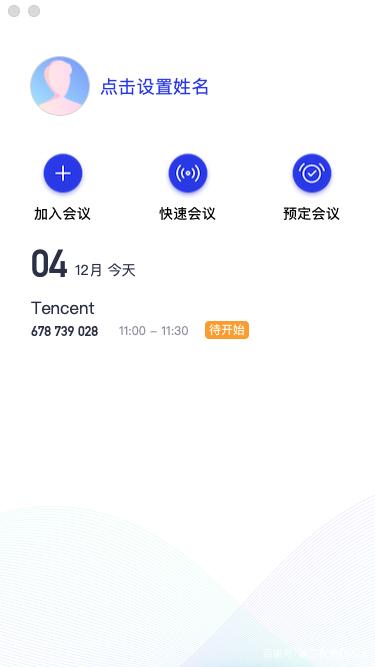
After successful login, you can see the following interface
1. Avatar: Click on the avatar to provide feedback, view the current version information, and log out of the current login status. The personal version account also supports modifying phone numbers and binding WeChat
2. Join Meeting: Click on Join Meeting to quickly join a meeting. Enter the "9-digit meeting number" sent to you by the other party to join the meeting. You can select whether to turn on the camera and microphone by default when entering the meeting from the list below
3. Quick Meeting: Click on Quick Meeting to initiate a meeting immediately without filling in various meeting information
4. Book Meeting: Click to book a meeting, you can specify the meeting theme, set the meeting time, set the meeting password and location, and fill in the invited member information, upload meeting documents, and set member upload document permissions in the booking interface. The system will automatically pull up your email and support sending invitation emails for the current scheduled meeting to the invitee
5. Meeting List: This list will display all your "scheduled meetings" for today and beyond, including the scheduled meetings you have created and those that have invited you. It will be sorted according to the scheduled start time>>scheduled end time. You can double-click on a meeting to enter the meeting details page and edit or modify it according to your permissions. You can also end your scheduled meetings as the host here in advance
Meeting type
1. Quick Meeting:
Quick meeting, also known as instant meeting, means that you can immediately initiate a meeting. Quick meeting will not be displayed in the meeting list. When you leave the meeting, you cannot find the meeting in the meeting list. However, you can join the meeting again by entering the meeting number within one hour of the start of the meeting. If there is no one in the meeting after one hour, the system will automatically end the meeting
2. Scheduled Meeting:
Booking a meeting refers to a more formal meeting initiated by you after filling in the booking information. You can fill in the "meeting theme", "start time", "end time", "invited member information", "membership password", "membership location" and other information in the booking meeting interface. The client's "meeting list" will show you that the "start time" is today and future scheduled meetings. When your meeting reaches the "end time" you set, the system will not force the end of your meeting, and all scheduled meetings can be reserved for you for 30 days (starting from the scheduled start time). You can enter this meeting at any time within 30 days
2、 Tencent Meeting Meeting Function
Audio selection
1. When you enter the meeting, you will be prompted to choose the audio access method, as shown in the following figure:
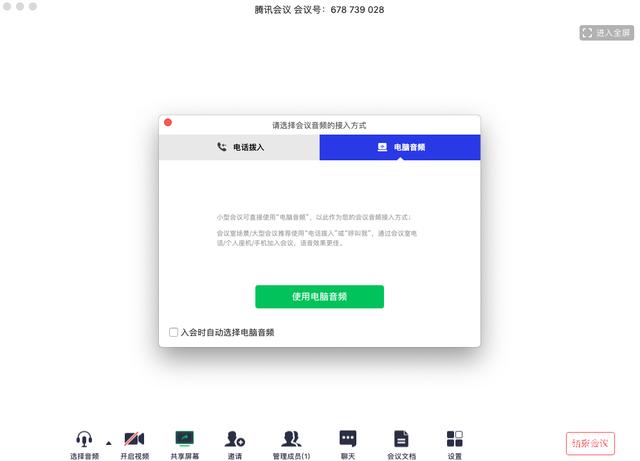
2. This interface corresponds to two options, namely "Phone Dialing" and "Computer Audio". You can choose either one as your calling method in the meeting
● Phone call
Phone dialing "refers to joining a meeting by dialing the corresponding number from your local landline or mobile phone. At this time, the landline or mobile phone will serve as your meeting audio and will no longer use the computer's microphone and speaker, resulting in relatively better call quality
● Computer audio
Computer audio "refers to the direct use of the computer's microphone and speakers (headphones) as a conference audio access method to join a meeting. This method is suitable for small meetings and is not limited by the scene. When hosting large conferences, we recommend using "Call Me" or "Phone Call" as audio access methods for better call quality
When you do not choose any audio access method, you will not be able to speak or hear others in the meeting
Open video
Click this button to turn on and off the camera. If you don't have a camera device, you won't be able to turn on the video

Shared Desktop
At present, Tencent Meeting supports screen sharing between mobile and desktop clients. When you click on "Share Screen", you can quickly initiate sharing. At the same time, only one person can share the screen
1. Start sharing screen
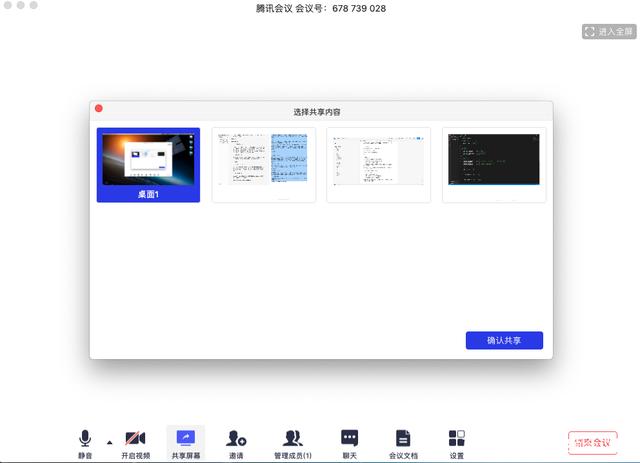
(1) Click the "Share Screen" button on the meeting panel toolbar
(2) Select the window or desktop you want to share
(3) Click the "Share Screen" button to confirm initiating the sharing process
2. Screen Sharing Menu
(1) Mute/unmute: You can mute or unmute the device
(2) Turn on/off video: You can turn on or off the camera
(3) Invitation: You can perform member invitation operations here
(4) Members/Management Members: You can view the current member list here, and if you are the host, you can also manage members here
(5) New Sharing: End the current sharing and select new shared content, mostly used in scenarios where you need to switch to another application for sharing when sharing applications
(6) Pause/Continue Sharing: Pause your screen sharing
(7) Chat: Open your chat window
(8) Meeting document: Open the online document editing interface
(9) Settings: You can test your speakers and microphone here
(10) End screen sharing: End the current screen sharing operation
After sharing the screen, the screen sharing menu will enter immersion mode after 3 seconds and automatically hide at the top. You need to place the mouse over the desktop to bring it up

invitation
1. Copy invitation information:
You can copy the meeting invitation information here and send it to the invitee through instant messaging tools such as WeChat and Enterprise WeChat. The invitee can join the meeting through the meeting number, membership link, phone call in, and other methods
Members/Management Members
1. When you are the host
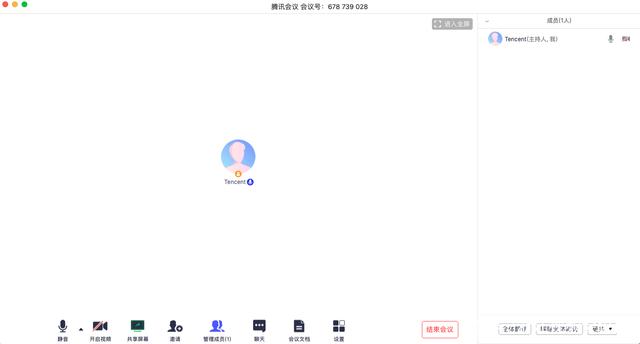
When you are the host, the button text displays as "Manage Members". You can click on "Manage Members" to control the discipline of the venue through this function
(1) Number of members: The top will display the current number of members in the meeting, which can help you quickly count the number of members
(2) Member List: The member list displays all the members currently in the meeting. You can mute/unmute, rename, or move out of the meeting for a member in the list. You can also transfer the host's identity to a member here
(3) Mute All: Below, you can mute all members in the current meeting. You only need to click "Mute All". When a new member joins the meeting, they will also be muted by default. If a member wants to speak, they need to click "unmute" and raise their hand to apply to you. After you agree, the member can speak
(4) Unmute all members: When you want to unmute all members, you can click the "unmute all members" button, and all members can freely unmute
(5) Mute when members join: When you want new members to join the meeting, it will be muted by default. You can click the "More" button at the bottom and check "Mute when members join"
(6) Allow members to self unmute: When you check "Allow members to self unmute" (default check), members can unmute themselves. You can uncheck it, as members need to apply to you to unmute after being muted
(7) Play prompt sound when members enter: When you check "Play prompt sound when members enter", a prompt sound will be emitted when a new member joins the meeting
(8) Co host: When you set other members as co hosts, this member can assist you in managing the meeting, and co hosts can mute, unmute, and perform other operations on members
You can choose the display method of the member list independently. When your member list is attached on the right side, you can click the drop-down box in the upper left corner to choose to close the member list or pop up the member list independently. When your member list pops up independently, you can choose to click "More">>"Merge into Main Window" to return the member list to the attached state
2. When you are a member
When you are a member, the button text displays as "member". You can click the "member" button to view the current member list, where you can check the number of attending members and also mute/unmute yourself on this interface
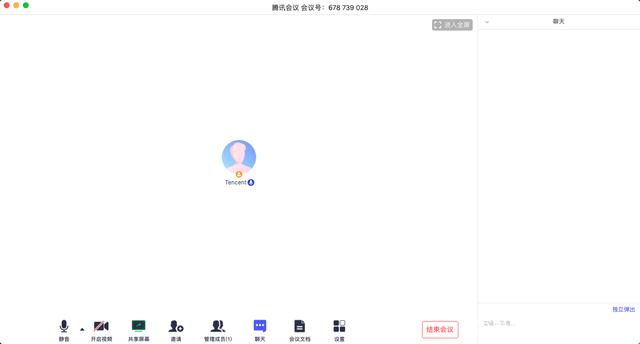
chat
Click this button to bring up a chat window. When you are unable to speak or are muted by the host, you can communicate and interact with other members in the meeting through this window. Currently, private chat function is not supported
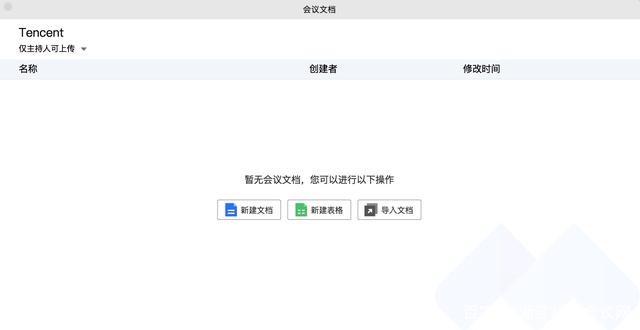
Meeting Documents
Click this button to bring up the document window, where you can create a document and decide whether to invite members to collaborate. You can also choose to import local documents and collaborate with other members during the meeting. After the meeting, you can view your document records in the Web Personal Center
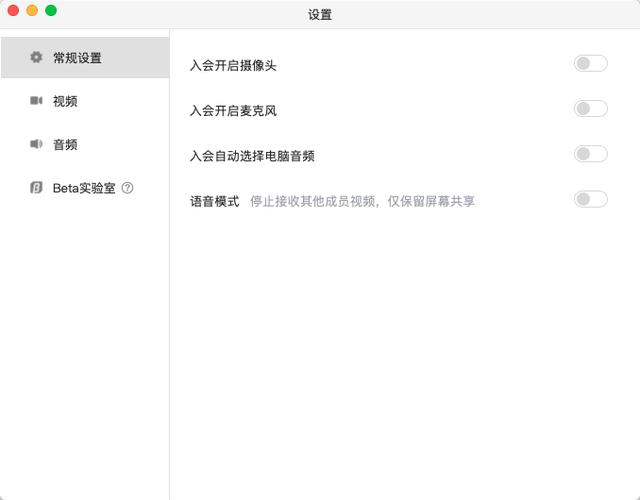
Set up
Click this button to bring up the settings window, where you can perform device information detection and check if your camera, microphone, and speaker are recognized. At the same time, you can enter the Beta laboratory and experience the latest black technology
1. Voice mode: When you turn on this mode, you will stop receiving videos from other members and only keep the shared screen. When you are in a weak network environment, it is recommended that you turn on voice mode
2. Background blurring (Beta Lab): When you turn on this mode for video conferencing, your video background will be blurred
3. Beauty (Beta Lab): When you open this mode for video conferencing, your face will be beautified and you can adjust the level of beauty yourself
Exit the meeting
1. Book a meeting
When you are the host
When you are the host, this button is used to end the meeting. After clicking, you can choose to "leave the meeting" or end the meeting. Leaving the meeting means you leave the meeting, and ending the meeting means you remove all other members from the meeting. You can return to the meeting at any time within 30 days (counted from the scheduled start time). If you want to delete the meeting and are not allowed to enter within 30 days, you can double-click on the meeting in the "Meeting List" section of the Tencent Meeting main interface, and then choose to delete the meeting (when there are people in the meeting, you cannot end the meeting, you must first click "End Meeting" to remove everyone)
When you are a member
When you are a member, this button is used to leave the meeting. After clicking it, you can choose to leave the meeting. Within 30 days (based on the scheduled start time set by the host), you can return to the meeting at any time (if the meeting is deleted, you cannot enter again)
1. Quick Meeting
When you are the host
When you are the host, this button is used to end the meeting. After clicking, you can choose to temporarily leave or end the meeting. When you choose to temporarily leave, you can return to the meeting through the meeting number. If the meeting lasts for more than an hour, it will automatically end when there is no one in the meeting, and you cannot return to the meeting here. When you choose to end the meeting, it will end directly
When you are a member
When you are a member, this button is used to leave the meeting. After clicking it, you can exit the current meeting. If the meeting has not ended, you can return to the meeting again through the meeting number
注:快速会议不会在主界面的会议列表中展示


